Guides & FAQ
Everything you need to set up and run Flockarewe, step by step.
Watch how it works
Getting started
Open the dashboard▾
- Click Log in and enter your farm password.
- Your workspace holds your animals, paddocks and alerts, all private to your farm.
- You'll land on the Dashboard. That's your control centre.
Add your first animal▾
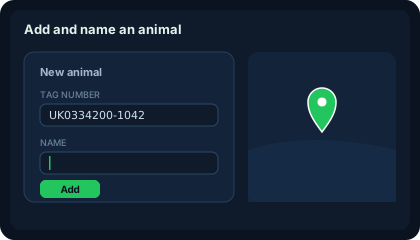
- On the Dashboard, open the “Add a tag / tracker” button.
- Enter the Device ID, the devEui printed on the LoRa ear tag or collar (or supplied with your hardware).
- Give it a Name (e.g. “Heifer 042”), and optionally a Paddock and tag/management number.
- Click Add tag. It appears under “Tracked animals”, where all its controls live.
Add a whole mob at once (CSV import)▾
- Under “Add a tag / tracker”, click Bulk import (CSV).
- Paste one animal per line in the format:
device_id, name, paddock, radius_m, tag_no(only device_id is required). - Click Import tags. Duplicates are skipped automatically.
Connecting your network
Point ChirpStack at Flockarewe▾
- On the Dashboard, copy your LoRa webhook URL.
- In ChirpStack → Applications → Integrations → HTTP, paste it as the endpoint. Your gateways then forward every uplink.
- An animal auto-registers the first time an uplink arrives, so you don't have to add it manually first. Details on the How it works page.
What hardware works?▾
- LoRa ear tags and GNSS/4G collars all report to the same dashboard. LoRa devices report via your gateways; 4G collars report over the mobile network.
- Mixing or switching hardware later needs no changes on your side; the webhook stays the same.
Paddocks & the map
Draw a paddock geofence▾
- On an animal's card, click Geofence.
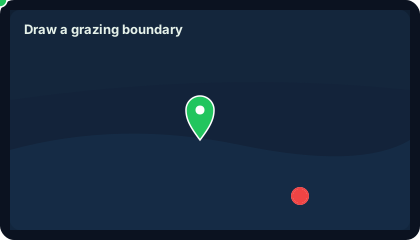
- Click a point on the map to drop the paddock centre, then set a radius in metres.
- Click Save. From now on you'll get an out-of-paddock alert whenever that animal strays past the line.
- Reuse a paddock across mobs by saving it as a reusable zone in the Sites panel.
Read the live map▾
- The map auto-zooms to your animals once they report a position.
- Each animal shows as a pin; click it to see its name. The selected animal's paddock shows as a green circle.
Managing animals
Edit an animal's details▾
- On an animal's card, click Edit.
- Fill in tag/management number, breed, value, notes and status.
- Click Save. Details like tag number and value are handy for records and insurance.
Record an animal's status▾
- Use the status controls on the card to mark where an animal is, in paddock, yarded, on agistment, sold or lost.
- This keeps an accurate, up-to-date picture of the whole mob.
Alerts
Get alerts by email & push▾
- On the Dashboard, enter an address in “Alert email” and click Save settings.
- You'll be notified, by email and app push, when an animal leaves its paddock, the mob scatters, an animal goes quiet, or a tag runs low on battery.
Quiet by day, alert at night▾
- Tick “Only alert outside working hours”, set your hours, and Save settings.
- Flockarewe then stays quiet during normal daytime grazing and flags night-time movement, the higher-risk signal. Shep still breaks through for genuine emergencies.
Strays & welfare
Flag an animal as at-risk▾
- On an animal's card, click Stolen / at-risk. This tightens the movement thresholds so you catch the smallest signal.
- Click Unflag once it's safely home.
Share a live location▾
- On an animal's card, click Share. Flockarewe creates a public live-tracking link.
- Send it to a neighbour, contractor or the police to help recover a strayed or stolen animal, no login needed.
- The link updates automatically and can be revoked at any time.
Ask Shep▾
- Open Ask Shep on the dashboard and ask things like “which animals haven't moved today?” or “is anything out of its paddock?”.
- Shep reads your live data and answers in plain English.
Frequently asked
Do I need mobile signal for LoRa tags?▾
No. LoRa ear tags and collars report to on-farm gateways, which cover paddocks, hills and valleys with no mobile signal and no SIM. Only 4G collars use the mobile network.
How accurate is the location?▾
GNSS and 4G collars give a precise GPS fix. LoRa ear tags are located by which gateways hear them, a paddock-level position, ideal for 'is this animal where it should be?'.
How often does an animal report?▾
It's configurable per device, reporting more often uses more battery. Ear tags typically report periodically and last months to years on a coin cell; collars report more frequently.
Can I separate different farms or mobs?▾
Yes. Each workspace is fully isolated with its own animals, paddocks, alerts and webhook URL.
Who can see my data?▾
Only people with your farm login. Every animal, location and alert is behind sign-in.
What happens when a tag's battery is low?▾
If the device reports battery level, Flockarewe stores it, shows it on the animal's card, and raises a low-battery alert under 20%, so you can swap it before you lose track.
How do I stop a shared link working?▾
Open the animal's Share button again to manage it, the public link can be revoked at any time, instantly cutting off access.
How do I connect my LoRa network?▾
Point ChirpStack's HTTP integration at your Flockarewe LoRa webhook and claim each devEui to an animal. Full walkthrough on the How it works page.
Is there a full feature list I can download?▾
Yes. Download the Flockarewe platform feature list (PDF), a full rundown of tracking, geofencing, virtual fencing, animal health, pasture & rotational grazing, the commons grazing scheme, and the Shep AI shepherd agent.
Still stuck, or want a feature?
See the full how-it-works overview →